Getting Software Defined Radio (SDR) hardware to work on a Raspberry Pi can be a frustrating experience. Between conflicting library versions, missing dependencies, and the need to compile several components from source, what should be a simple setup often turns into a multi-hour debugging session. To make this process repeatable and reliable, I put together an installation script that handles the entire setup in one go, supporting both PlutoSDR and SDRPlay devices.
In this article, I’ll walk through what the script does, why each step matters, and the reasoning behind the choices I made. The complete script is available for download on GitHub at https://github.com/yo3iti/Dual-SDR-install/, so you can grab it, review it, and run it on your own Pi.
Why a Script in the First Place?
If you’ve ever tried to install libiio, libad9361, and SoapySDR by hand, you already know the answer. The official documentation for each of these projects is solid in isolation, but when you combine them on a Raspberry Pi, you run into version mismatches, broken pkg-config files, and libraries that get installed but cannot find each other at runtime. Automating the process means you get a known-good environment every time, and if something breaks, you have a single file to inspect rather than a fuzzy memory of which commands you ran in what order.
Safety Check: Don’t Run as Root
The script begins with a simple but important guard:
if [ “$EUID” -eq 0 ]; then
echo “WARNING: Don’t run as root during build. Run specific commands with sudo.”
exit 1
fi
Running the entire build as root is a common mistake. It causes files in your home directory to end up owned by root, which then breaks your virtual environment and any other user-level operations later on. The script uses sudo only for the specific operations that genuinely need elevated privileges, such as installing system packages and copying compiled libraries into /usr/local.
Step 1 and 2: System Update and Dependencies
Before installing anything new, the script updates the package list and upgrades existing packages. Then it installs a fairly long list of system dependencies:
sudo apt-get install -y \
python3-pip python3-dev build-essential \
libaio-dev libzstd-dev libiio-dev libad9361-dev \
libiio-utils cmake git libusb-1.0-0-dev \
pkg-config libxml2-dev bison flex \
libavahi-client-dev libavahi-common-dev \
libserialport-dev libcdk5-dev
Each package serves a specific purpose. The build-essential, cmake, and pkg-config packages are the build toolchain we’ll need to compile libiio, libad9361, and SoapySDR from source. The libusb-1.0-0-dev package is required for USB communication with the SDR hardware. The libxml2-dev package is a hard requirement of libiio, which uses XML to describe device contexts. The libavahi-* packages enable network discovery of IIO devices over the local network, which is genuinely useful when running PlutoSDR over Ethernet or USB-Ethernet. Finally, libserialport-dev adds support for the serial backend in libiio.
You’ll notice that libiio-dev and libad9361-dev are installed from the apt repository here, but later removed and replaced with versions built from source. This is intentional. Installing the apt versions first satisfies any transitive dependencies, and then we replace them with newer, version-controlled builds.
Step 3: Python Virtual Environment
On modern Raspberry Pi OS releases, the system Python is protected against pip installs to prevent breaking system tools. The right approach is to create a virtual environment:
python3 -m venv “$VENV_PATH”
source “$VENV_PATH/bin/activate”
pip install –upgrade pip wheel setuptools
The virtual environment lives under ~/programare/sdr_build/venv, and all Python packages are installed into it. This keeps the SDR tooling isolated from anything else you have on the Pi, and it means you can blow away the venv and start over without affecting the system. The script also asks you whether to recreate the environment if it already exists, which is convenient when you’re iterating on the install.
Step 4: Python Packages
With the virtual environment active, the script installs the Python libraries:
pip install numpy scipy matplotlib h5py pyyaml tqdm
pip install pyadi-iio
NumPy and SciPy are the workhorses for any kind of signal processing. Matplotlib is there for plotting spectra, waterfall displays, and constellation diagrams. The h5py package handles HDF5 files, which is the format I prefer for storing IQ recordings because it supports compression and metadata in a single file. PyYAML handles configuration files, and tqdm provides progress bars for long-running operations. Finally, pyadi-iio is the Python wrapper for libiio that exposes a clean object-oriented API for talking to PlutoSDR and other Analog Devices hardware.
Step 5: Building libiio from Source
This is the heart of the script and the step where most failed installations go wrong. The script first removes any existing libiio packages:
sudo apt-get remove -y libiio* python3-libiio || true
The reason is simple: the version of libiio shipped in the Debian repositories is often older than what pyadi-iio expects, and having two versions installed (one in /usr/lib and one in /usr/local/lib) causes the dynamic linker to pick the wrong one at runtime. By cleaning out the apt version first, we guarantee that only our compiled version is in play.
Next, the script clones libiio from GitHub and checks out version 0.26:
git clone https://github.com/analogdevicesinc/libiio.git
cd libiio
git checkout v0.26
I pin to v0.26 because it is the last release in the 0.x series before the 1.x rewrite. The pyadi-iio Python bindings still depend on the 0.x API, so checking out a 1.x release will give you a library that compiles fine but breaks all the Python tooling. If you want to use libiio 1.x, you’ll need to wait for the Python ecosystem to catch up.
The build itself is a standard CMake invocation:
cmake .. \
-DCMAKE_INSTALL_PREFIX=/usr/local \
-DWITH_SERIAL_BACKEND=ON \
-DENABLE_IPV6=ON
make -j$(nproc)
sudo make install
sudo ldconfig
The serial backend is enabled because some devices, like older PlutoSDR firmwares, expose a serial-over-USB interface. IPv6 support is enabled because there’s no good reason to leave it off in 2026. The ldconfig call at the end refreshes the dynamic linker cache so that the new library is picked up immediately without requiring a reboot.
Step 6: libad9361 with a CMake Patch
libad9361 is the high-level driver for the AD9361 RF transceiver chip used inside PlutoSDR. It depends on libiio, but the upstream CMakeLists.txt has a long-standing issue: it doesn’t always find libiio properly when libiio is installed in /usr/local. The script applies a small patch to fix this:
find_package(PkgConfig REQUIRED)
pkg_check_modules(LIBIIO REQUIRED libiio)
This forces CMake to use pkg-config to locate libiio, which is the correct mechanism. The patch is applied conditionally, so if upstream fixes the issue in a future release, the script won’t break. Without this patch, you’d often see linker errors complaining that symbols from libiio cannot be found, even though libiio is clearly installed.
Step 7: SoapySDR
SoapySDR is a vendor-neutral abstraction layer for SDR hardware. It lets you write code that works with PlutoSDR, RTL-SDR, HackRF, SDRPlay, and many other devices without rewriting it for each one. The script pins to soapy-sdr-0.8.1, which is a stable release that works well with all the hardware modules I’ve tested:
git clone https://github.com/pothosware/SoapySDR.git
cd SoapySDR
git checkout soapy-sdr-0.8.1
SoapySDR by itself doesn’t talk to any hardware. You need driver modules for each device type, which are loaded as plugins. We install one of those plugins in the next step.
Step 8 and 9: SDRPlay API and SoapySDRPlay3
SDRPlay is a bit of a special case. The vendor’s API is closed source and must be downloaded directly from sdrplay.com. The script cannot automate this because the download requires accepting a license agreement, and the URL changes between versions. So the script pauses and asks whether you’ve installed the API:
read -p “Do you have SDRPlay API installed? (y/n) ” -n 1 -r
If you answer yes, the script proceeds to clone and build SoapySDRPlay3, which is the open-source SoapySDR module that wraps the SDRPlay API. If you answer no, this step is skipped and you can run the SDRPlay setup later by hand. PlutoSDR users can ignore this section entirely.
Step 10: Verification
The final step runs a series of sanity checks to confirm that everything installed correctly:
iio_info -V
SoapySDRUtil –info
If iio_info prints a version string, libiio is working. If SoapySDRUtil --info lists the installed modules, SoapySDR is working. The script also runs a small Python snippet that imports each of the Python packages and prints a checkmark or X for each one. This catches the case where a package is installed in the wrong virtual environment, or where a native dependency is missing.
Activation Helper
At the end of the install, the script writes a small activation helper to ~/programare/activate_sdr.sh. Sourcing this file activates the virtual environment in your current shell, so you don’t have to remember the full path to the venv every time you want to use the SDR tools. You can also add the source line to your ~/.bashrc if you want the environment to be active by default.
Running the Script
Once you’ve downloaded the script from https://github.com/yo3iti/Dual-SDR-install/, make it executable and run it as your normal user:
chmod +x install_sdr.sh
./install_sdr.sh
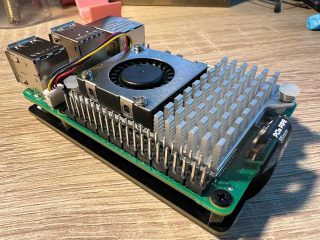
The script will take a while to complete, particularly on a Raspberry Pi 4 or earlier, because compiling libiio and SoapySDR from source on ARM hardware is not fast. On a Pi 5, expect roughly 10 to 15 minutes. On a Pi 4, closer to 25 minutes. Make sure your Pi has adequate cooling, because make -j$(nproc) will pin all the cores at 100 percent for extended periods.
After Installation
To verify that your PlutoSDR is detected, plug it in and run:
iio_info -u ip:192.168.2.1
python3 -c ‘import adi; sdr=adi.Pluto(“ip:192.168.2.1”); print(sdr)’
For SDRPlay:
SoapySDRUtil –probe=driver=sdrplay
If both commands return useful output, you’re ready to start writing SDR applications.
Closing Thoughts
This script grew out of my own frustration with setting up SDR tooling repeatedly across multiple Raspberry Pi units. Every time I rebuilt one, I’d hit the same handful of issues, fix them, and then forget the fixes by the next time. Codifying the whole process in a script means I never have to relearn those lessons, and sharing it means others don’t have to learn them at all.
If you find bugs, have suggestions, or want to add support for additional SDR hardware, contributions are welcome on the GitHub repository at https://github.com/yo3iti/Dual-SDR-install/. Happy hacking, and 73 from YO3ITI.