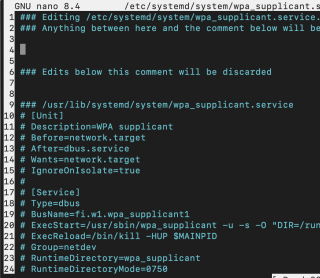
Another day working a bit for my SA818 radio node project. Today I tried active cooling with a 5V fan driven from RPIs 5V rail and controlled from GPIOs with a MOSFET (2N7002). I had only one 50mm SUNON fan, a large one with three wires. The additional yellow wire is the tachometer (provides information regarding fan rpms). This tacho wire is connected to GPIO24 which is pulled up to 3.3V rail through a 12 kΩ resistor. I was not aware until recently that you can turn on and off a fan using a special dtoverlay entry in /boot/firmware/config.txt where you specify the GPIO control pin and threshold temperature — CPU Temperature at which the fan turns on (°C × 1000), temperature that sets GPIO high — and, optional, the hysteresis, i.e. below temp at which the fan turns off (°C × 1000), default 10000. For example:
dtoverlay=gpio-fan,gpiopin=23,temp=50000,temp_hyst=5000
This means that GPIO23 is used to turn on when CPU temp reaches 50°C and turn off once CPU cools 5 degrees less than 50.

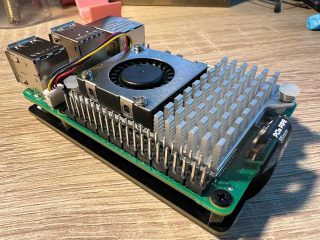
Testing my SA818 radio node. The fan is controlled from GPIO via a n-Channel MOSFET (2N7002). Gate connected to GPIO23 (RPi pin 16) via a 100 Ω resistor and the yellow wire pulled up to 3.3V thorugh a 12 kΩ.
I wrote a simple Python script to monitor rpm and temperature:
#!/usr/bin/env python3
import pigpio
import time

TACH_PIN = 24
PULSES_PER_REV = 2          # Adjust if your fan uses different pulses/rev
SAMPLE_TIME = 1.0           # seconds

def get_cpu_temperature():
    try:
        with open("/sys/class/thermal/thermal_zone0/temp", "r") as f:
            return int(f.read().strip()) / 1000.0
    except Exception:
        return None

def main():
    pi = pigpio.pi()
    if not pi.connected:
        print("ERROR: pigpiod not running.")
        return

    # Configure pin
    pi.set_mode(TACH_PIN, pigpio.INPUT)
    pi.set_pull_up_down(TACH_PIN, pigpio.PUD_UP)
    pi.set_glitch_filter(TACH_PIN, 100)   # ignore pulses shorter than 100 µs

    # Create callback (cumulative tally available via cb.tally())
    cb = pi.callback(TACH_PIN, pigpio.FALLING_EDGE)

    prev_tally = cb.tally()  # initial cumulative count
    print("Measuring CPU temperature + Fan RPM (Ctrl+C to stop)")

    try:
        while True:
            time.sleep(SAMPLE_TIME)
            total = cb.tally()           # cumulative pulses since cb creation
            pulses = total - prev_tally  # pulses in this interval
            prev_tally = total

            rpm = (pulses / PULSES_PER_REV) * (60.0 / SAMPLE_TIME)
            cpu_temp = get_cpu_temperature()

            if cpu_temp is None:
                temp_str = "N/A"
            else:
                temp_str = f"{cpu_temp:.1f}°C"

            print(f"CPU: {temp_str}    RPM: {int(rpm)}")

    except KeyboardInterrupt:
        print("\nExiting...")

    finally:
        cb.cancel()
        pi.stop()

if __name__ == "__main__":
    main()
For fun, I logged the values in a csv file and used them to display graphically:
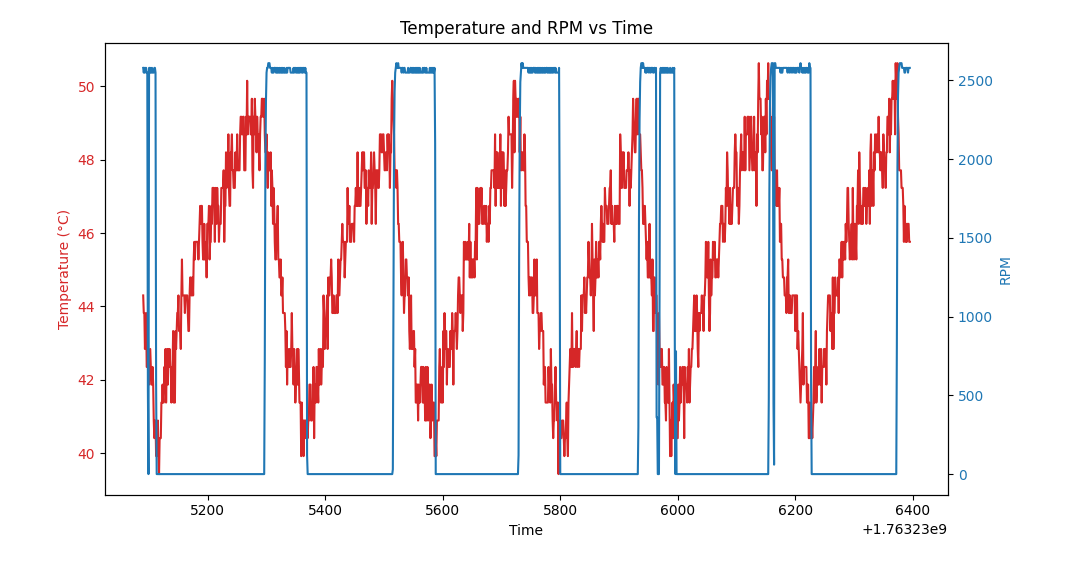
Simply add the following function to Python script:
def log_to_csv(timestamp, temperature, rpm, filename="fan_log.csv"):
    """Append timestamp, CPU temperature, and RPM to a CSV file."""
    file_exists = os.path.isfile(filename)

    with open(filename, "a", newline="") as f:
        writer = csv.writer(f)

        # Write header only once
        if not file_exists:
            writer.writerow(["timestamp_s", "cpu_temp_C", "rpm"])

        writer.writerow([timestamp, f"{temperature:.2f}", int(rpm)])
Main takeaways
Very important for dtoverlay:
- Temperatures must be in millidegrees Celsius.
- You need to reboot after changing config.txt.
- This method works on Raspberry Pi OS and any Pi with Device Tree enabled (default).
- For the Pi 5’s fan control via rp1-fan, the parameters differ slightly
- TODO: use a 4-wire fan whose rpm can be varied with CPU temperature
That’s it for now
73