This post documents a complete troubleshooting session getting a Raspberry Pi 5 to boot from a Samsung NVMe SSD running a freshly written Debian Trixie image.
The short version: there are three independent things that must be correct simultaneously, and the official images are currently missing at least one of them out of the box.
The setup: Raspberry Pi 5, Samsung MZVLB512HBJQ (970-class NVMe), Trixie image written via rpi-imager CLI (no desktop available). Symptom: silent hang on boot, nothing on screen, fan at full speed.
Layer 1: EEPROM Boot Order
The Pi 5 does not attempt NVMe boot by default. This must explicitly be set in the EEPROM bootloader configuration. I had to boot from SD card and run:
sudo rpi-eeprom-config –edit
As per guides, I made sure these two lines were present:
BOOT_ORDER=0xf416
PCIE_PROBE=1
The digit 6 in 0xf416 tells the bootloader to try NVMe. PCIE_PROBE=1 tells it to enumerate the PCIe bus before attempting boot. Without this second line some drives are never detected. However, I wanted the SD card as a fallback (so I can recover by re-inserting an SD card), so I used 0xf461 instead, which tries SD before NVMe. This gave me the freedom to test NVMe boot with SD card removed and reboot from SD card again (inserting back SD card in case of issues).
To verify the change applied after reboot:
sudo rpi-eeprom-config | grep -E ‘BOOT_ORDER|PCIE_PROBE’
Also keeping the EEPROM itself up to date:
sudo apt update && sudo apt upgrade
sudo rpi-eeprom-update
Layer 2: The dtparam=nvme Overlay
This is/ was the one that is/ was easiest to miss and hardest to diagnose. Seems that on the Pi 5, the NVMe PCIe controller is not enabled by default at the hardware level. It requires a device tree overlay to be present in config.txt on the boot partition:
dtparam=nvme
On a working SD card installation this line is already there. On a freshly written Trixie image it may not be. Without it, the kernel never initialises the PCIe controller, the NVMe drive is invisible, and the system hangs silently at early boot with the fan running at full speed (because the OS never gets far enough to take control of thermal management).
I checked whether it was present on my NVMe boot partition:
sudo mount /dev/nvme0n1p1 /mnt/nvme_boot
grep -i nvme /mnt/nvme_boot/config.txt
If it is missing, I add it:
echo “dtparam=nvme” | sudo tee -a /mnt/nvme_boot/config.txt
You can confirm that the running system’s NVMe support is compiled into the kernel (not a loadable module) with:
grep CONFIG_BLK_DEV_NVME /boot/config-$(uname -r)
If this returns CONFIG_BLK_DEV_NVME=y, the driver is built in and does not need to be present as a .ko module file. The dtparam overlay is still required to enable the controller regardless.
Layer 3: Cloud-init Hanging on First Boot
When rpi-imager writes a customised image (with a username, password, SSH, or WiFi preconfigured), it injects a parameter into cmdline.txt that looks like this:
ds=nocloud;i=rpi-imager-1775666401942
This tells cloud-init to process a first-boot seed. On a system that has not completed first-boot initialisation, cloud-init can hang waiting for network, a metadata endpoint, or other resources. The boot appears to stall silently.
This parameter should be stripped from cmdline.txt before booting from the NVMe:
sudo sed -i ‘s/ ds=nocloud;i=rpi-imager-[^ ]*//g’ /mnt/nvme_boot/cmdline.txt
Also, cloud-init should be disabled permanently on the NVMe (it is not needed on a Pi):
sudo touch /mnt/nvme_boot/cloud-init.disabled
While there, I removed quiet splash so I can see what is actually happening on screen during boot (One can add it back once everything is working):
sudo sed -i ‘s/ quiet splash plymouth\.ignore-serial-consoles//g’ /mnt/nvme_boot/cmdline.txt
Setting Up SSH and User Account Without a Desktop
Since rpi-imager was used from the CLI without a desktop, and the cloud-init seed has been removed, I had to set manually the user account and SSH on the boot partition before first boot:
sudo touch /mnt/nvme_boot/ssh
echo ‘yourusername:’$(openssl passwd -6 ‘yourpassword’) | sudo tee /mnt/nvme_boot/userconf.txt
The ssh file enables the SSH daemon on first boot. The userconf.txt file creates the user account with a hashed password. These are standard Pi OS mechanisms that work independently of cloud-init.
Setting Up WiFi on Trixie
Trixie uses NetworkManager rather than wpa_supplicant, so the old method of dropping a wpa_supplicant.conf file into the boot partition does not work. Instead, one can created a NetworkManager connection file (or use sudo nmtui command):
sudo tee /mnt/nvme_boot/custom.nmconnection << EOF
[connection]
id=MyWiFi
type=wifi
autoconnect=true
.
[wifi]
mode=infrastructure
ssid=YOUR_SSID_HERE
.
[wifi-security]
auth-alg=open
key-mgmt=wpa-psk
psk=YOUR_PASSWORD_HERE
.
[ipv4]
method=auto
.
[ipv6]
method=auto
EOF
Then:
sudo chmod 600 /mnt/nvme_boot/custom.nmconnection
Note that WiFi will also be blocked by rfkill until you set the country code. I learned this hard way some time back so I did this after first boot via raspi-config under Localisation Options.
Diagnosing a Silent Hang
If the system still hangs after applying the above fixes, here is how to diagnose further.
First, confirm the NVMe is physically visible to the system while booted from SD:
lsblk
sudo lspci
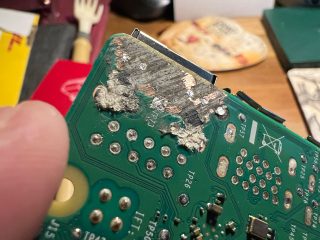
lspci should show a Non-Volatile memory controller entry. If it shows nothing, the issue is physical: check the FPC ribbon cable is fully seated at both ends, and ensure you are using the official 27W USB-C power supply with no other power-hungry peripherals attached.
Check the partition table and PARTUUID match:
sudo fdisk -l /dev/nvme0n1
sudo blkid /dev/nvme0n1p2
cat /mnt/nvme_boot/cmdline.txt
The PARTUUID in cmdline.txt must exactly match the PARTUUID shown by blkid. A mismatch means the kernel loads but cannot find the root filesystem.
Check whether the initramfs has NVMe modules (relevant if NVMe support is a loadable module rather than built in):
lsinitramfs /mnt/nvme_root/boot/initrd.img-*rpi-2712* | grep -i nvme | grep -v nvmem
If this returns nothing and CONFIG_BLK_DEV_NVME is =m rather than =y on the NVMe image’s kernel, the initramfs needs to be rebuilt. Change MODULES=dep to MODULES=most in /etc/initramfs-tools/initramfs.conf and run update-initramfs -u -k all from a chroot.
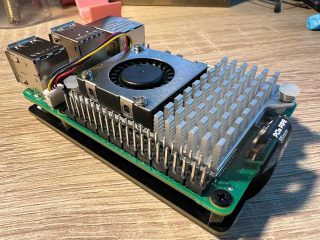
By the way, having the Raspberry Pi Active Cooler helped troubleshooting a lot. This ie because fan behaviour is a useful diagnostic signal. If the fan runs at full speed throughout the hang, the kernel is loading but crashing before the OS takes control of thermal management. This points to an initramfs or root mount failure, not a bootloader problem.
The Complete Checklist
- EEPROM:
BOOT_ORDERincludes NVMe (digit 6),PCIE_PROBE=1is set config.txton NVMe boot partition:dtparam=nvmeis presentcmdline.txt:ds=nocloudcloud-init seedparameter is removed- Boot partition:
cloud-init.disabledfile exists - Boot partition:
sshfile exists,userconf.txthas correct hashed credentials PARTUUIDincmdline.txtmatches blkid output fornvme0n1p2- Power supply: official 27W USB-C, no other power-hungry devices during first boot
- FPC cable: fully seated at both ends
After a Successful Boot
Once SSH is working, I expanded the root filesystem to use the full drive capacity (almost forgot to do this):
sudo raspi-config
Navigate to Advanced Options and select Expand Filesystem.

Also set the WiFi country under Localisation Options to unblock the wireless interface.
Verify everything is as expected:
findmnt /
df -h /
uname -r
findmnt should show /dev/nvme0n1p2 as the root device. df should show the full drive capacity. uname -r should show the rpi-2712 kernel variant, which is the native Pi 5 kernel.
Conclusion
Setting up booting from NVMe is not easy but it pays out in terms of performance gains. Speed is incredible. It counts much more than the amount of RAM or processor type. I have now a very performant platform that I can use for my E sporadic project. Image below shows a comparison in performance between my previous Raspberry Pi 4B and the current platform:

Comparison results between Raspberry Pi 4 Model B Rev 1.4 (board “A”) and Raspberry Pi 5 Model B Rev 1.1 (board “B”). Overall increase in performance. Note the fabulous increase in storage performance (SSD vs NVMe). Comparison script created in Python.